Project Overview
Lunafi is a San Francisco-based fintech platform that helps freelancers, independent contractors, and gig workers manage their business finances expense tracking, tax estimation, income reporting, and invoice management in one place. I designed the complete web application as the product designer, responsible for the full UI system across
all core features.
THE PROBLEM
Freelancers don't think of themselves as business owners but they have to act like one. Every transaction needs to be tracked, categorized, and accounted for at tax time. Most don't have accountants. Most don't use bookkeeping software. Most rely on spreadsheets or ignore the problem entirely until April.
Lunafi needed to make financial management feel approachable not like accounting software, but like a clear, calm overview of your business health that you could check in
five minutes.
USERS
Freelance professionals
Designers, copywriters, consultants, videographers. Digitally fluent but not financially trained. They understand their craft, not tax categories or expense classification rules.
Uber drivers, DoorDash couriers, Instacart shoppers. Income comes from multiple platforms simultaneously, making it nearly impossible to track manually.
Content creators and online sellers
Income from YouTube, Etsy, Shopify. Multiple revenue streams, irregular payment schedules, platform-specific income patterns.
Key Insights
Freelancers are anxious about taxes, not transactions
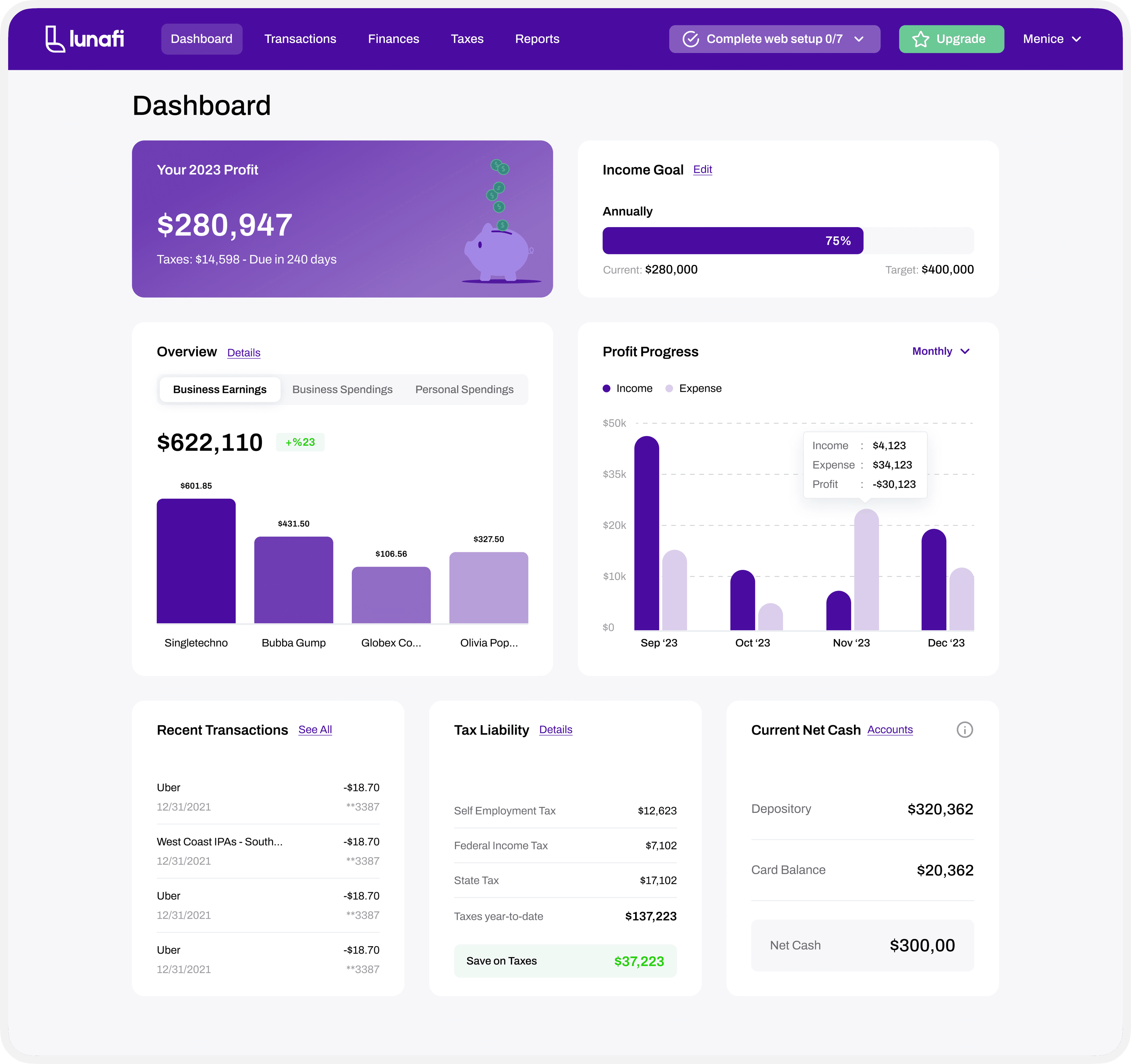
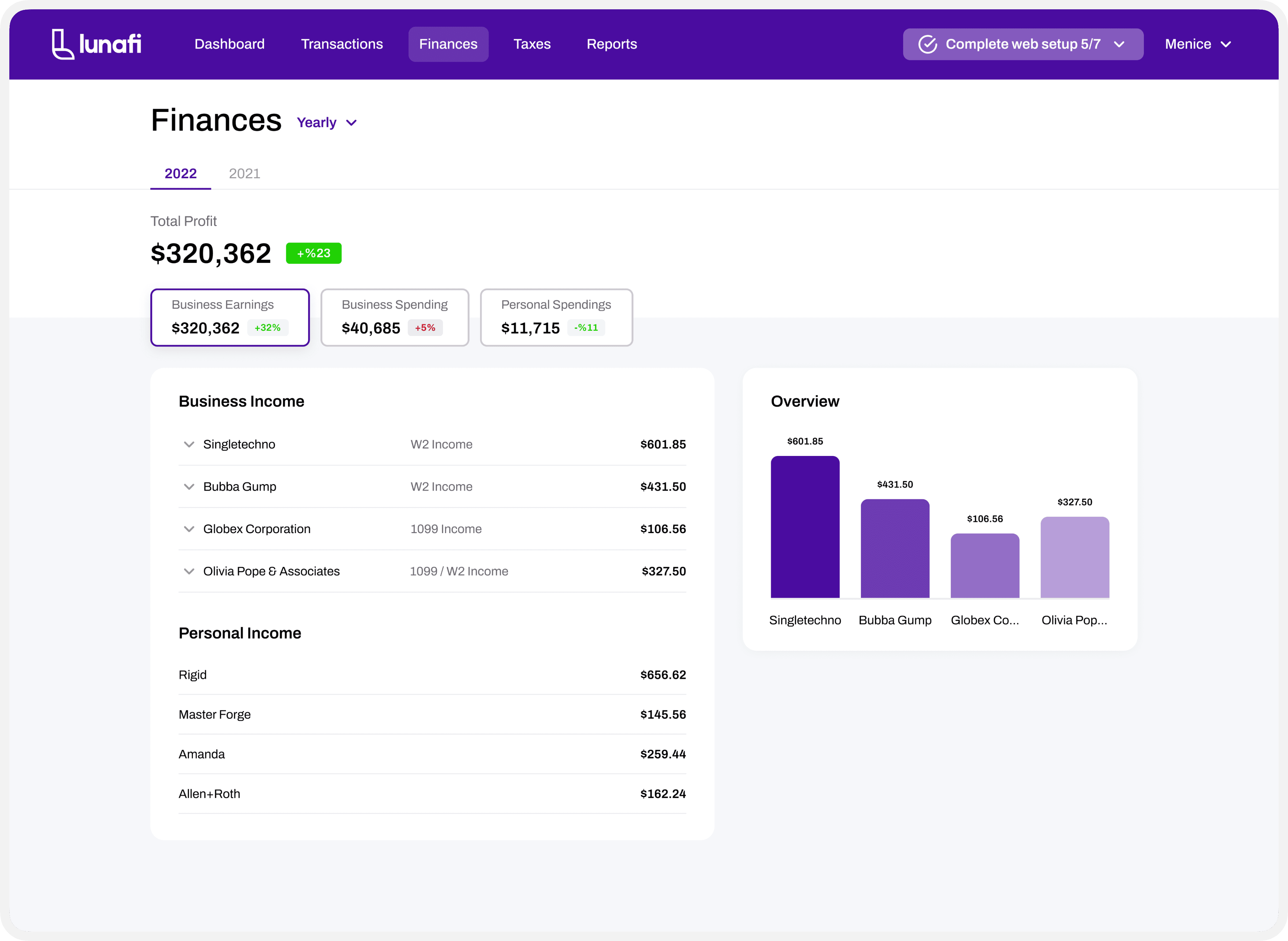
The emotional problem isn't "I can't track my expenses." It's "I don't know how much I owe and I'm scared to find out." The dashboard needed to answer the tax question immediately and visibly not bury it in a reports section.
Classification is the core daily friction
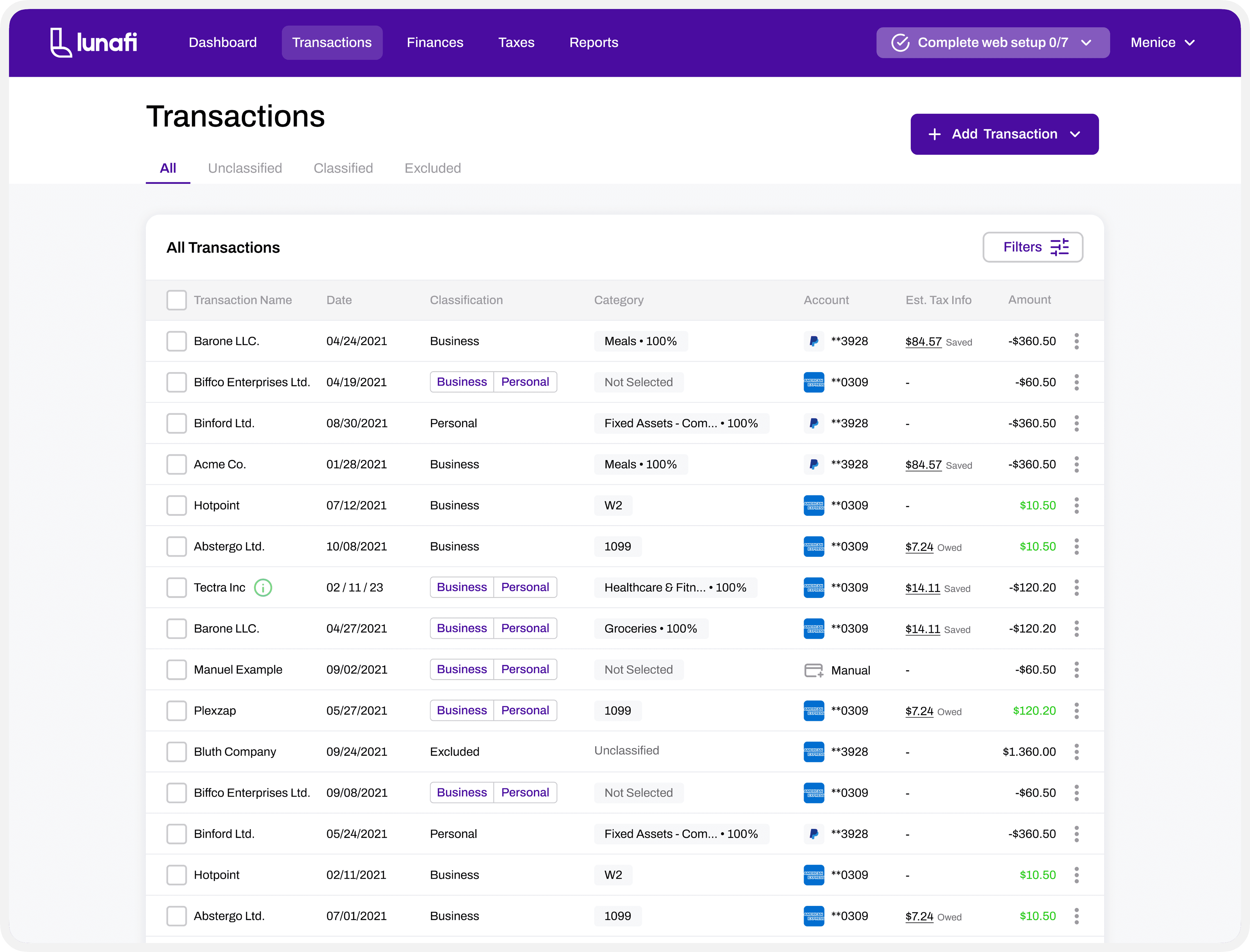
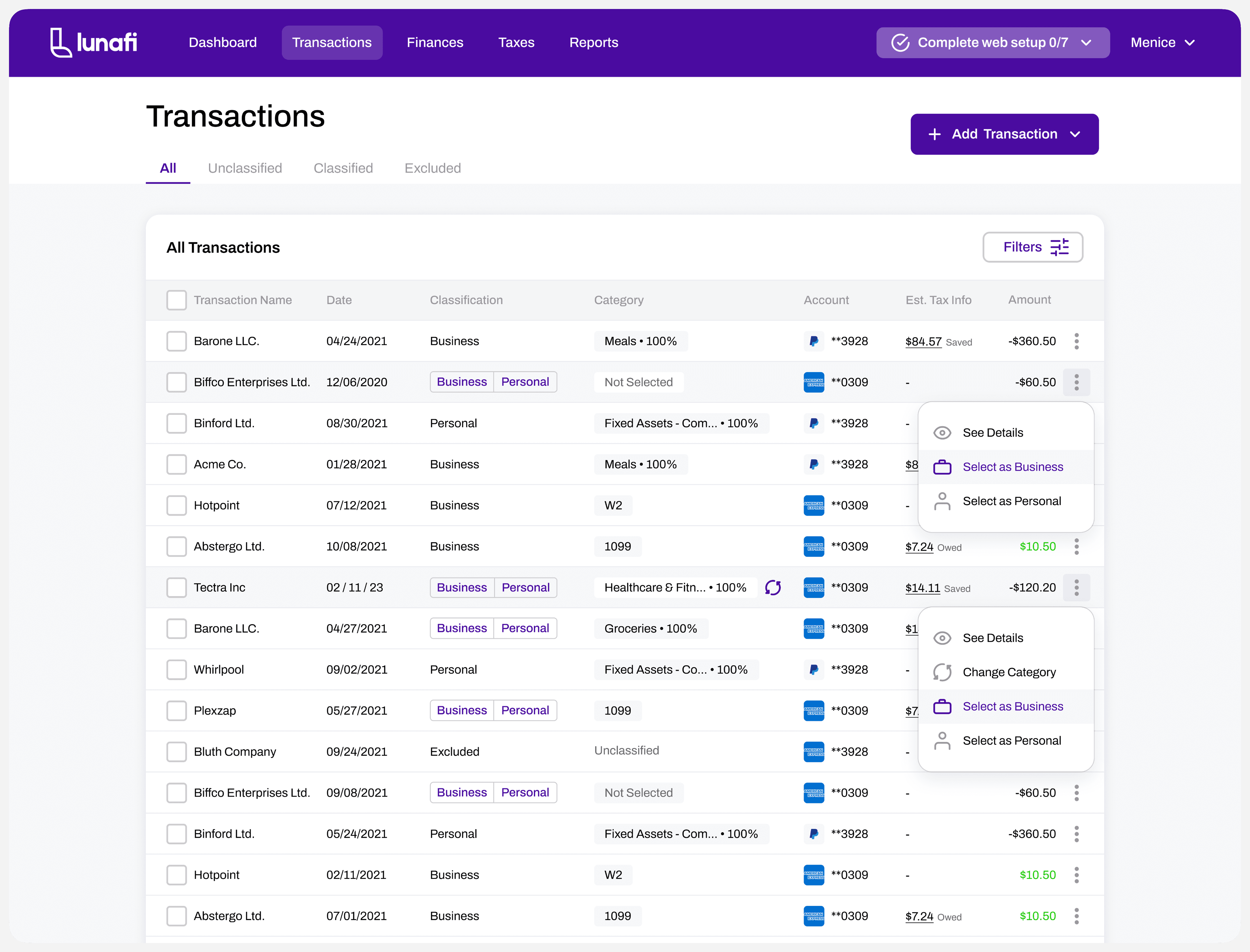
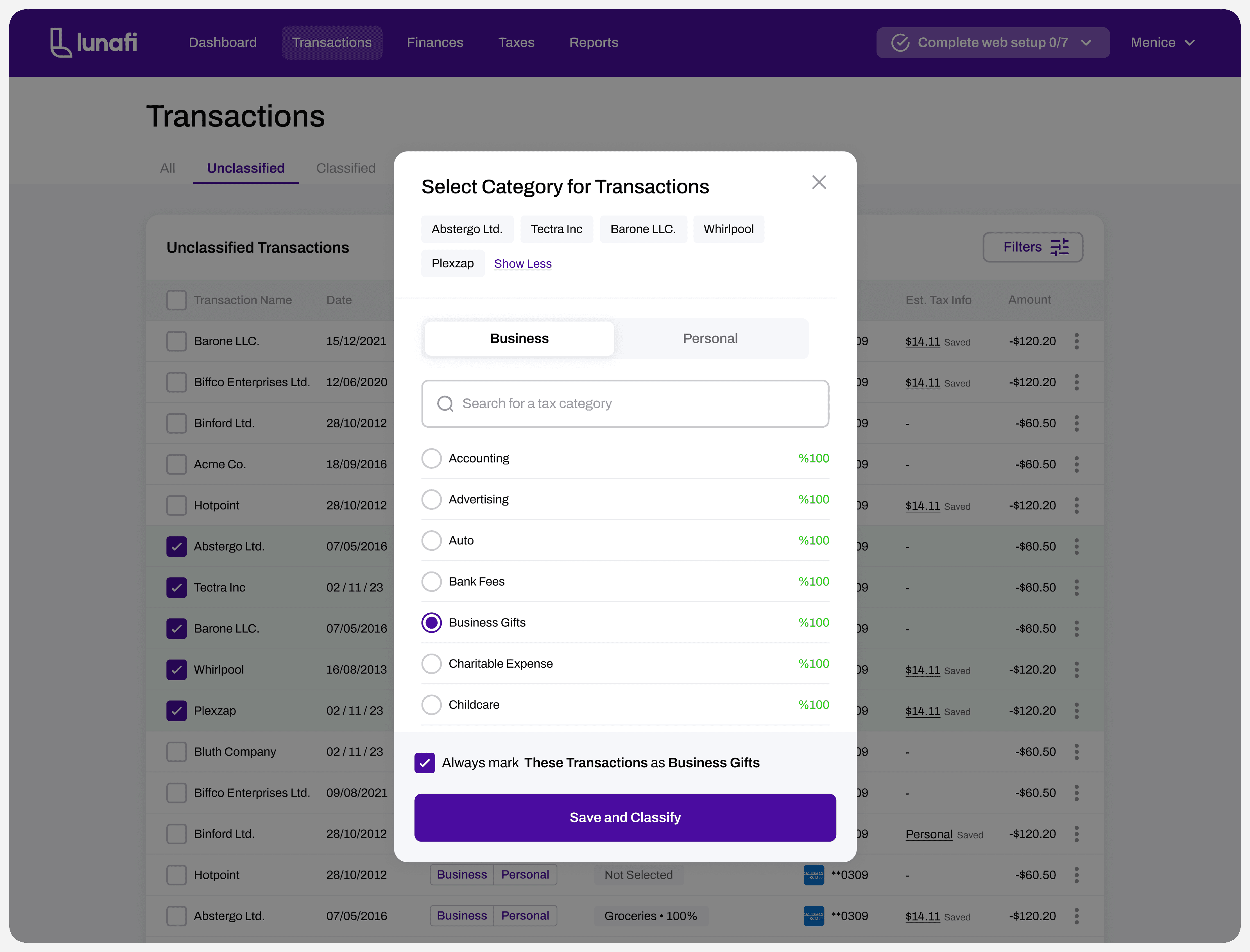
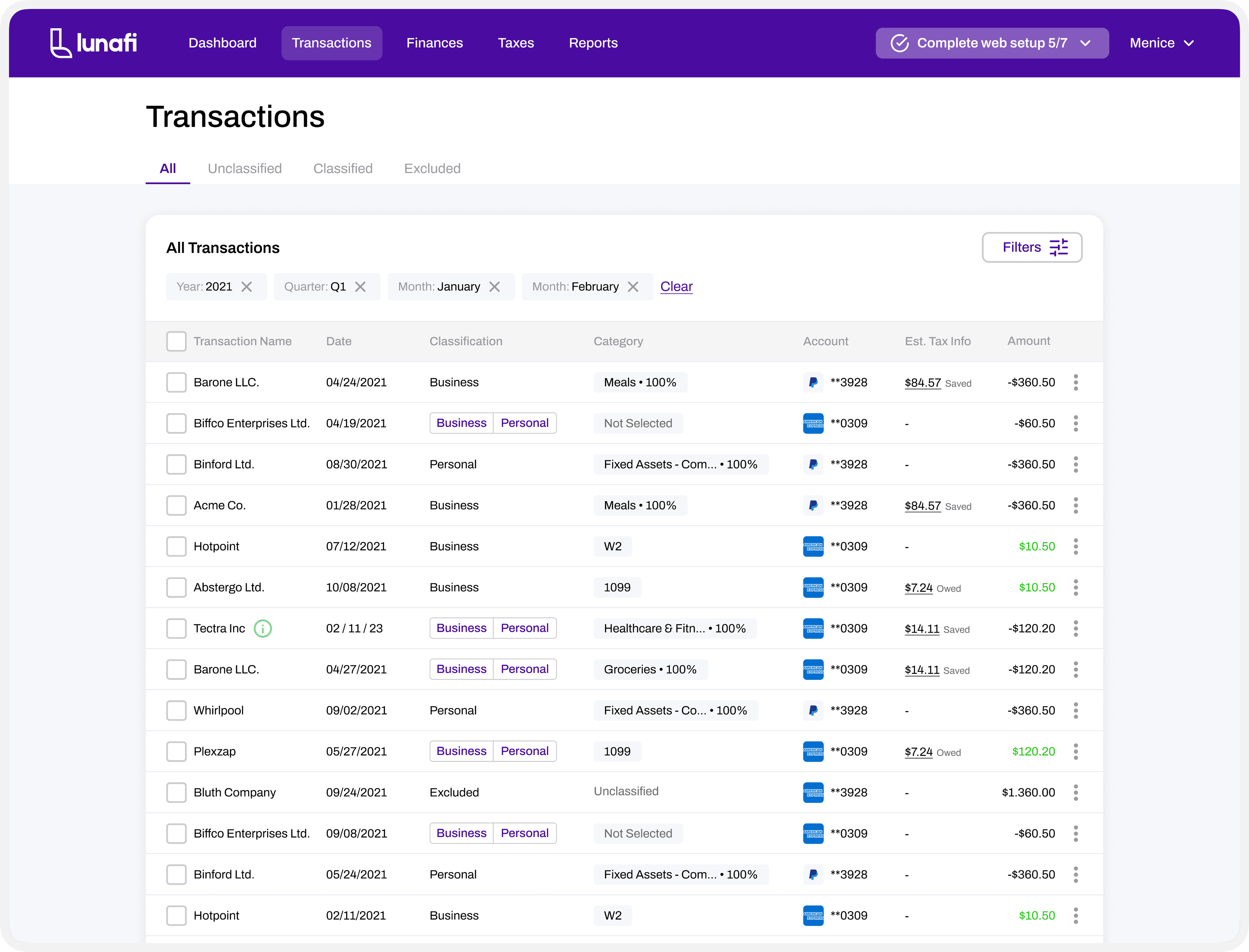
Every unclassified transaction is a future problem at tax time. But classifying transactions one by one is tedious. The design challenge was making classification fast, learnable, and eventually automatic not a chore users avoid.
Bulk operations are non-negotiable for power users
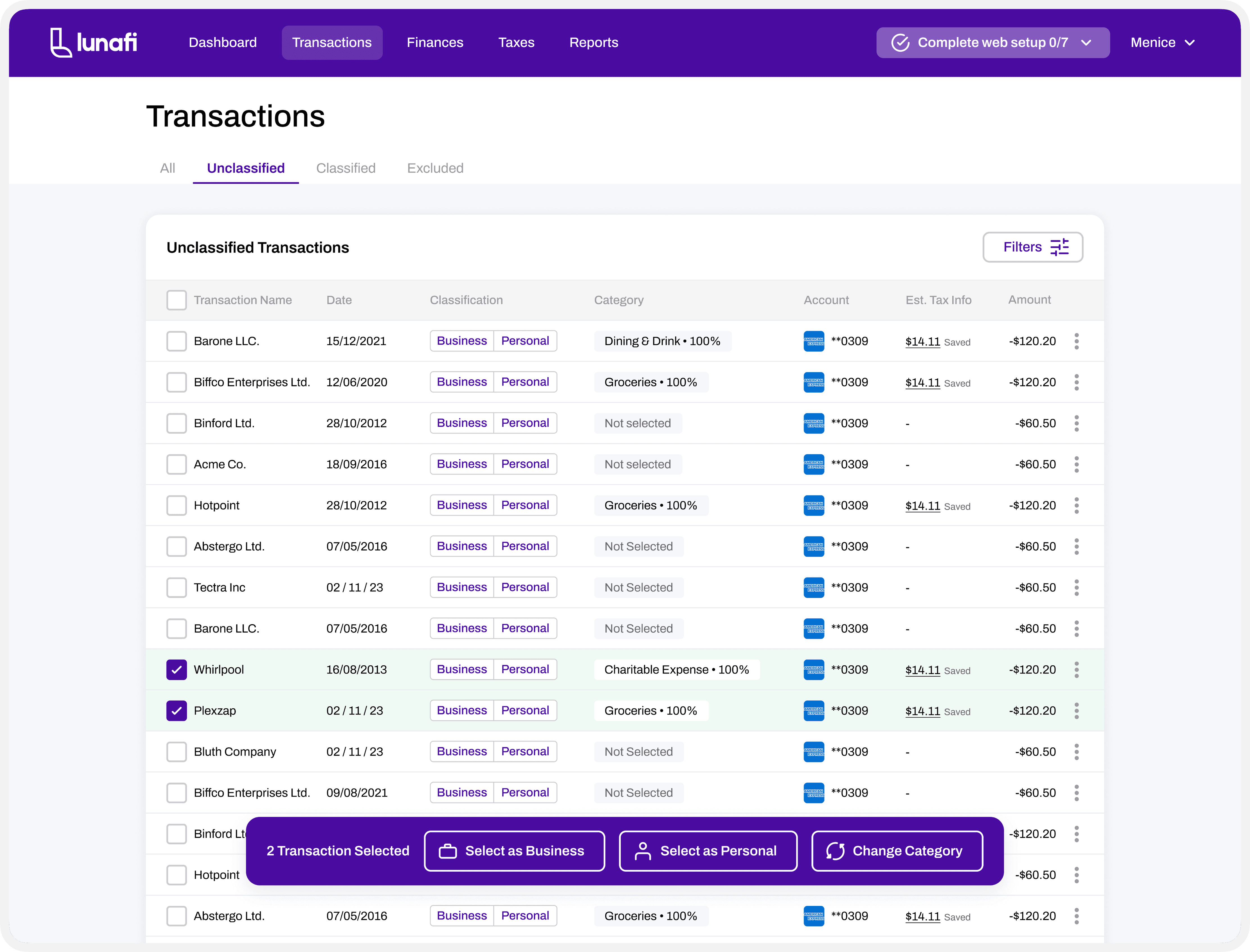
Freelancers who connect their bank accounts can have hundreds of transactions per month. Row-by-row classification doesn't scale. Bulk selection and batch categorization was essential for the product to be genuinely useful.
Empty states are high-stakes moments
A new user who links their bank account and sees a loading screen with no feedback will leave. A user who sees a confusing error will not come back. Every empty and loading state needed to be designed with the same care as the full data states.
Financial data needs progressive disclosure
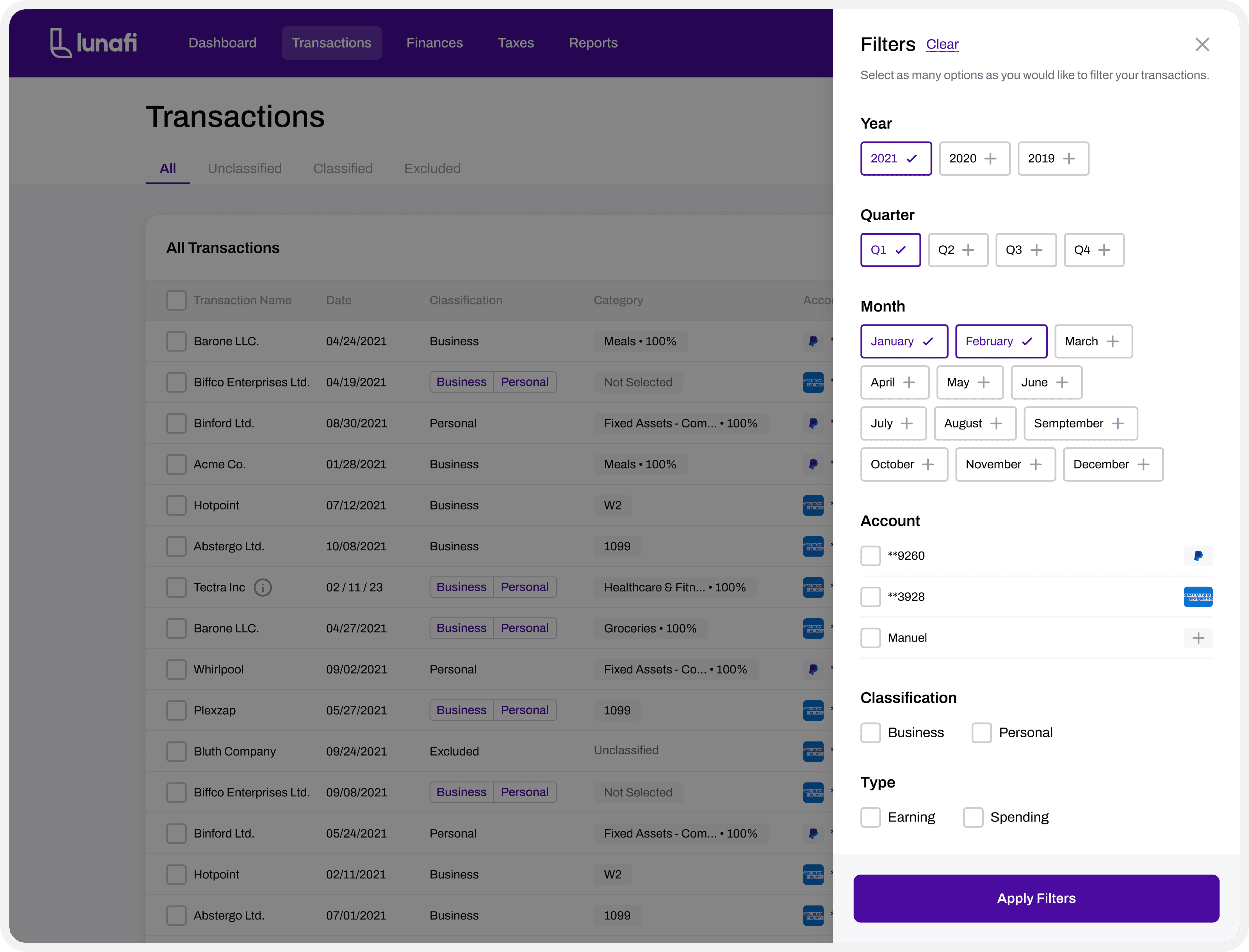
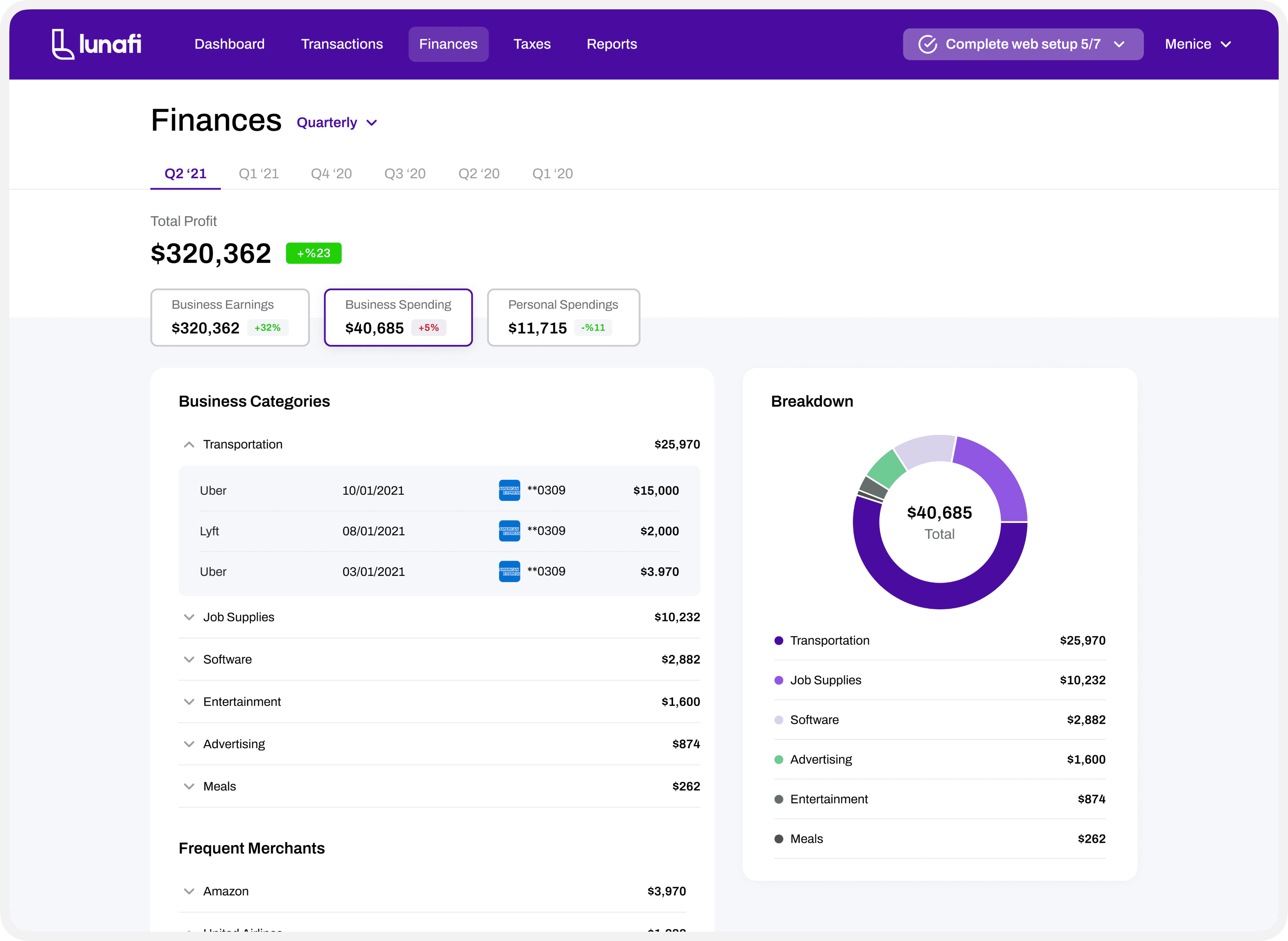
Showing everything at once all transactions, all categories, all time periods is overwhelming. The design needed to surface the most actionable data first and let users drill deeper when they chose to.
Outcomes
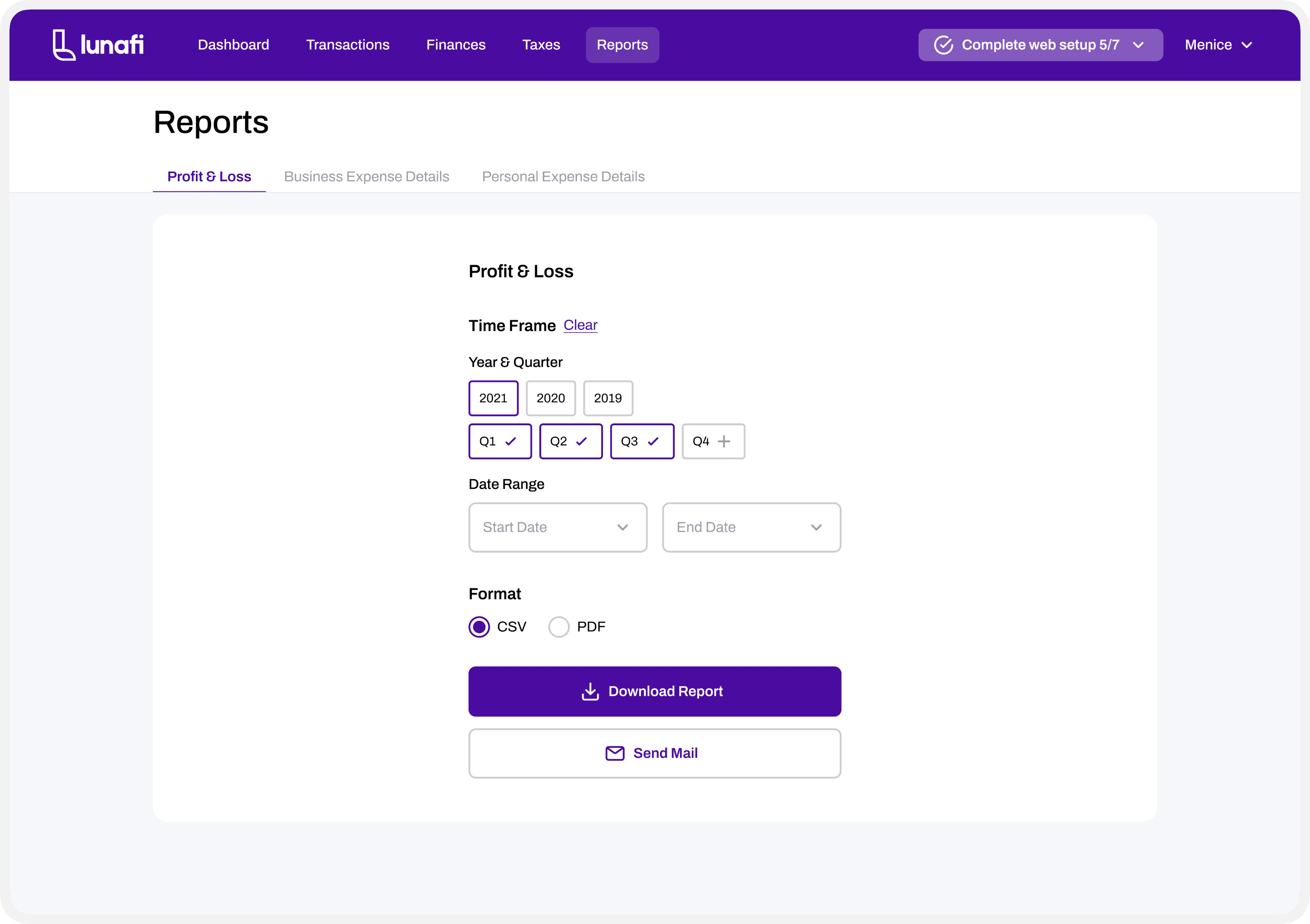
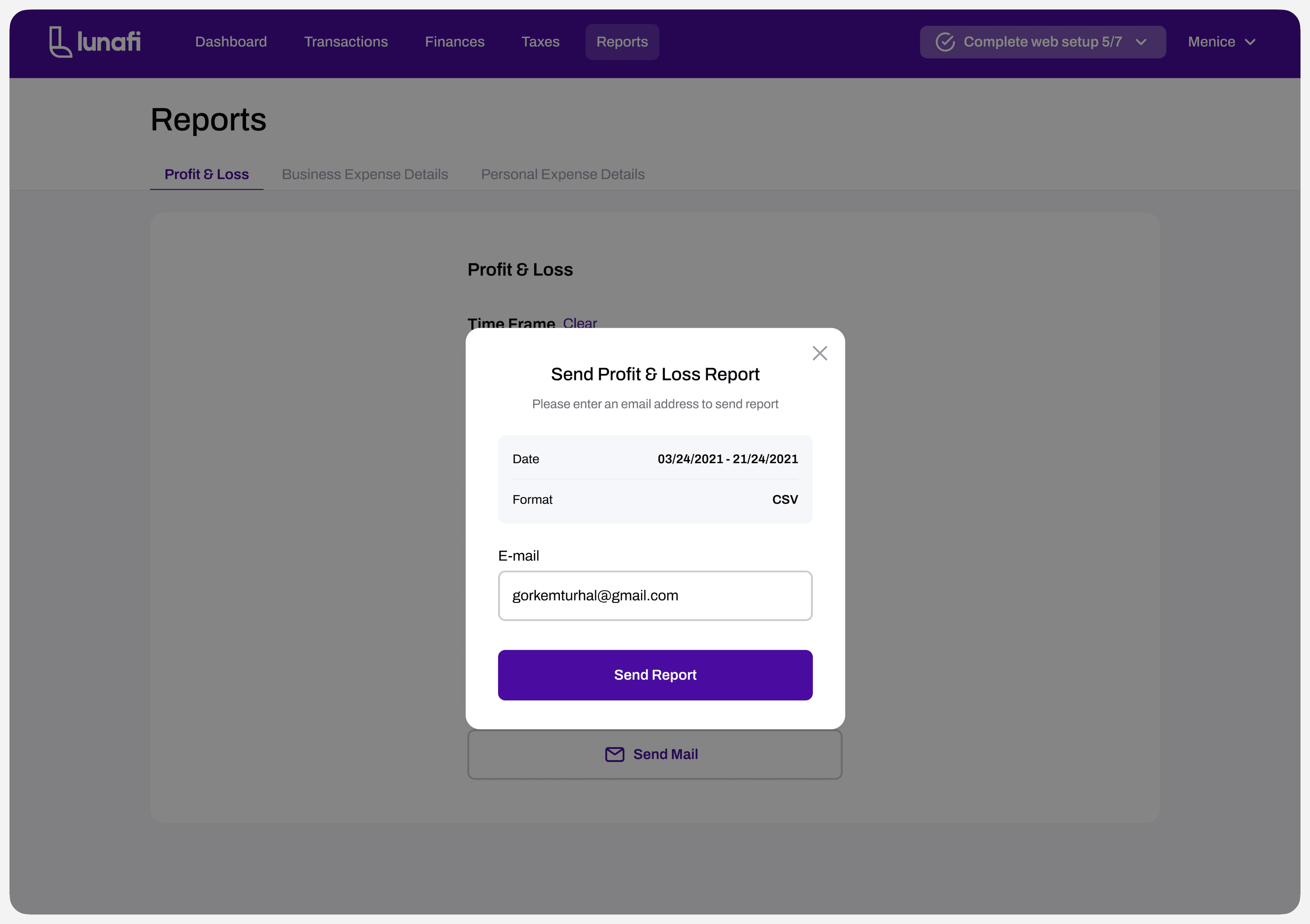
The Lunafi web application is live and serving thousands of freelancers across the US. The transaction classification system — including bulk operations, filtering, and the classification modal — became the core daily-use feature of the product. The design system built for this project supports ongoing feature development across web and mobile surfaces.
Real users described the outcome directly: "Lunafi has made it as easy as clicking a button or creating a rule so the app will automatically classify certain expenses," and "I can see a real-time breakdown of my profits and estimated taxes so I feel more confident knowing where I stand financially."